How to Restore the Windows 7 MBR
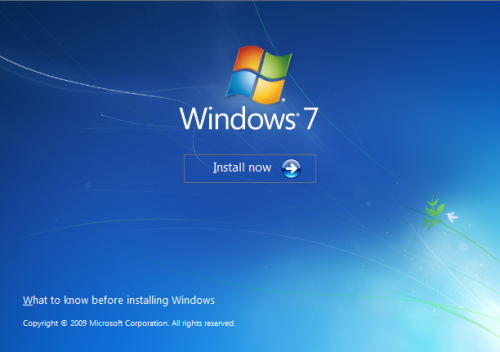
- Boot your computer to the Windows 7 DVD (or to a "Repair CD"). At this screen choose to install now.
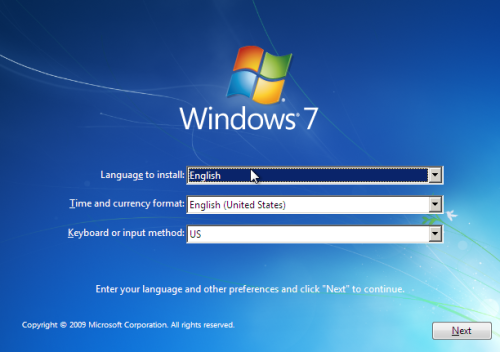
- Select your language and click next.
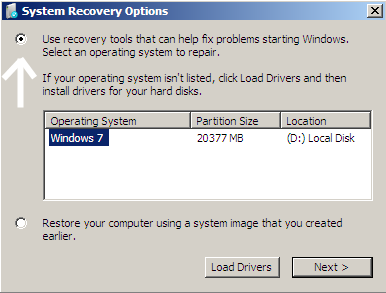
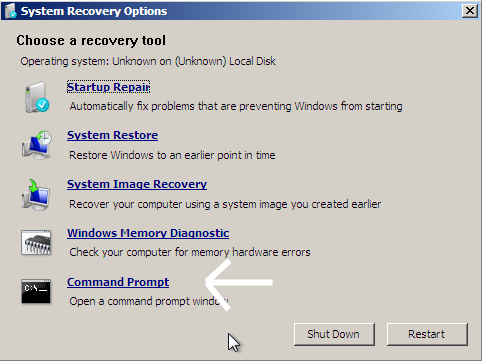
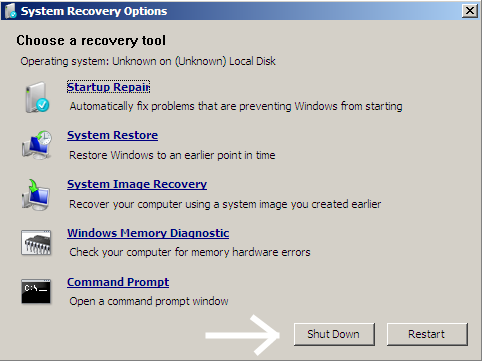
- Click the button for "Use recovery tools".
- Then select "Command Prompt".
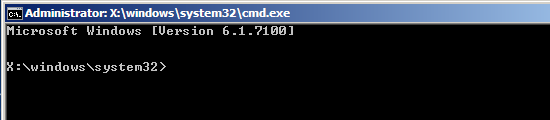
- When open, the command prompt will look like this:
- The command we will use, bootsect.exe, is in a folder (named boot) on the DVD.
- Use your DVD drive letter and
Type: exit and press Enter to close Diskpart
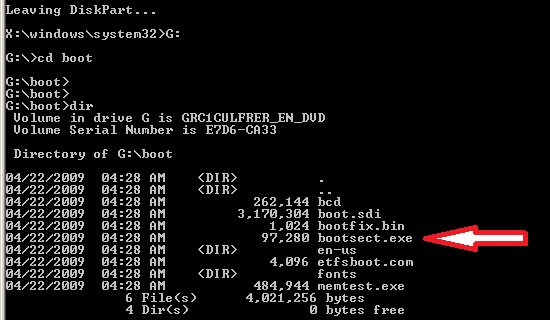
Type: G: (use the letter of your DVD drive) and press Enter
Type: cd boot and press Enter Type: dir and press Enter
- To restore the "bootsector code":
TYPE: bootsect /nt60 SYS /mbr and press Enter
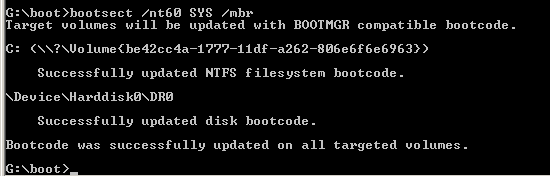
- When completed successfully,
Type: exit and press Enter
- Now select Shut Down or Restart.
- Then you can reboot your computer into Windows.
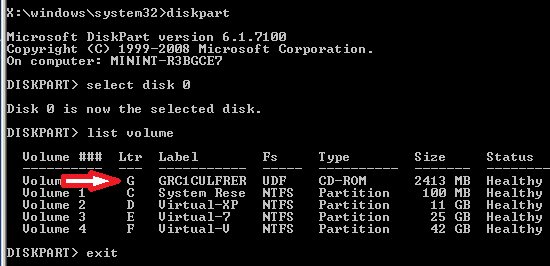
We need to know what drive letter has been assigned the DVD drive to access the folder.
Type: diskpart and press Enter
Type: select disk 0 (zero) and press Enter
Type: list volume and press Enter
In this screen shot, the 7 DVD is letter: G
verify that bootcect.exe is there (if you really need to)
NOTE: If this method fails to restore the MBR, you can try the bootrec command as it is also a tool for repairing the MBR.
This will close the command prompt window.
TKB:1122